
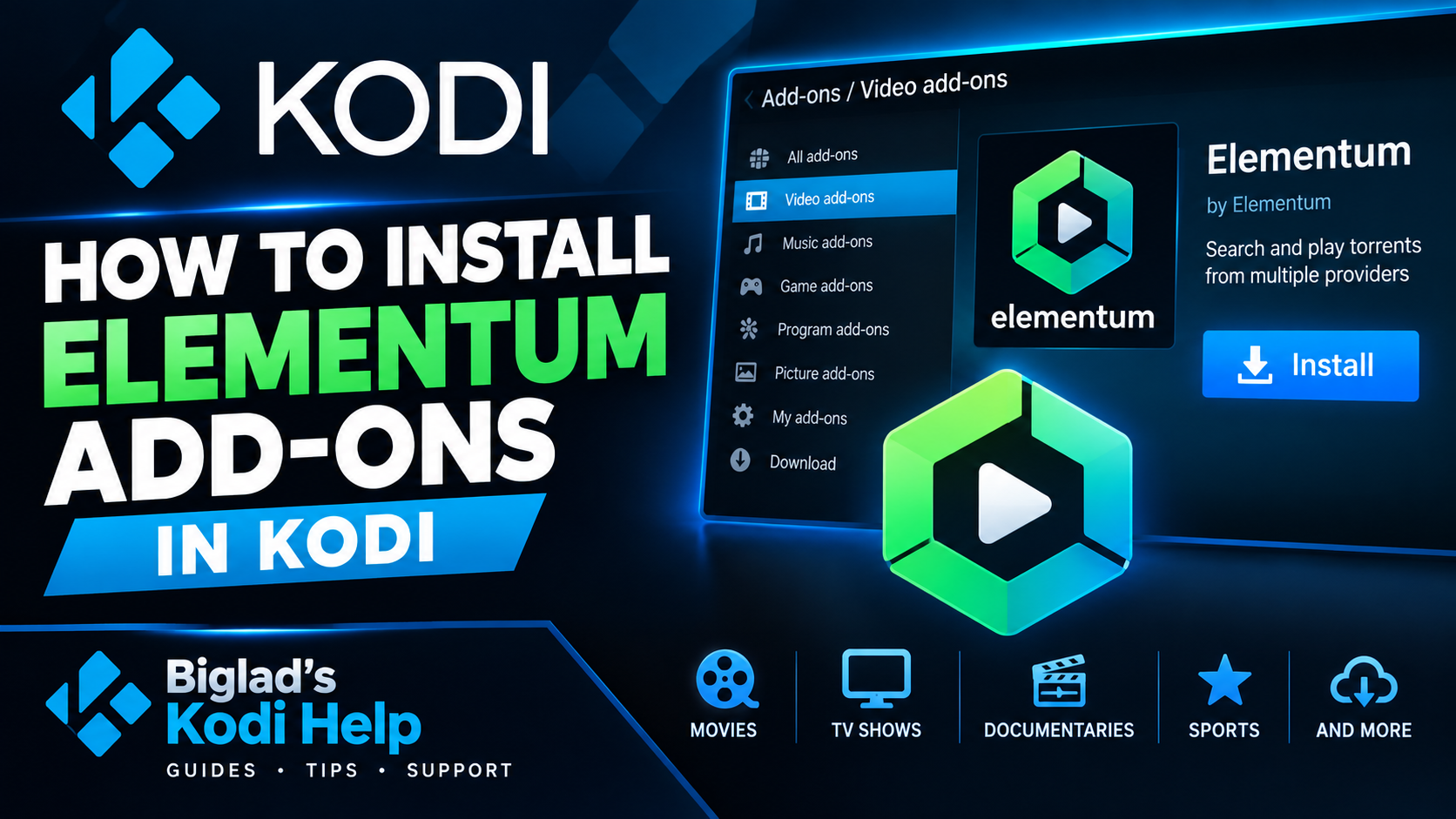
How to Install Elementum Add-ons in Kodi
📦 How to Install Elementum Add-ons in Kodi
This guide will show you how to install Elementum add-ons in Kodi.
Before you begin: You must already have the Elementum Repository installed in Kodi.
If you haven’t installed the repository yet, follow our guide:
👉 How to Install the Elementum Repository
Once the repository is installed, follow the steps below.
🟣 Step 1 — Open Kodi
Start Kodi and wait for the main screen to load.
From the Kodi home screen, select:
⚙️ Settings
📦 Step 2 — Open Add-ons
Select:
Add-ons
Then select:
Install from repository
🗂️ Step 3 — Select the Elementum Repository
You should now see the repositories installed on your Kodi system.
Select:
Elementum Repository
🔌 Step 4 — Open Video Add-ons
Inside the Elementum Repository, select:
Video add-ons
You will now see the Elementum add-ons available from the repository.
▶️ Step 5 — Select an Add-on
Select the Elementum add-on you want to install.
For example:
Elementum
⬇️ Step 6 — Install the Add-on
Select:
Install
Kodi may show a list of additional dependencies required by the add-on.
Select:
OK
and allow Kodi to install the required dependencies.
✅ Step 7 — Wait for Installation
Kodi will download and install the add-on and any required dependencies.
When the installation has finished, Kodi will display a notification confirming that the add-on has been installed.
🎬 Step 8 — Open Elementum
Return to the Kodi home screen and select:
Add-ons → Video add-ons
You should now see Elementum listed.
Select it to open the add-on.
🎉 Elementum Is Now Installed!
That’s it!
You have successfully installed an Elementum add-on through the Elementum Repository.
You can now access the add-on from:
Kodi → Add-ons → Video add-ons
🔧 Having Problems?
If the add-on doesn’t appear after installation:
- Restart Kodi.
- Go to Add-ons → My add-ons → Video add-ons.
- Check that the add-on is enabled.
- Check that all required dependencies were installed.
- Make sure your Elementum Repository is up to date.
For more Kodi guides and help, check out Biglad’s Kodi Help.